Android — FCM setup
Android delivery uses Firebase Cloud Messaging's HTTP v1 API with a service account. The legacy /fcm/send server key API was shut down in 2024; HTTP v1 is the only path.
Part A — Firebase project
1 Open the Firebase console and Add project (or pick the existing one your Android app already uses). Google Analytics is not needed.
2 In the project, click the Android icon under Get started by adding Firebase to your app.
3 Enter your Android package name (com.acme.shop, must match applicationId in app/build.gradle). Nickname and SHA-1 are optional for push. Register app.
4 Download google-services.json and put it in android/app/ (the module directory, next to build.gradle).
5 Add the Google services Gradle plugin as the console instructs:
// android/build.gradle (project)
buildscript {
  dependencies {
    classpath "com.google.gms:google-services:4.4.2"
  }
}
// android/app/build.gradle (module)
apply plugin: "com.google.gms.google-services"
(Kotlin DSL: id("com.google.gms.google-services") version "4.4.2" apply false at the project level and id("com.google.gms.google-services") in the module.)
Part B — Service account
6 Click the gear icon next to Project Overview → Project settings.
7 Open the Service accounts tab. You will see the Firebase Admin SDK service account (firebase-adminsdk-xxxxx@<project>.iam.gserviceaccount.com).
8 Click Generate new private key, then Generate key in the confirmation dialog. A JSON file downloads (<project>-firebase-adminsdk-xxxxx-xxxxxxxx.json).
Anyone holding it can send push notifications as your app. Do not commit it, do not e-mail it. Open Notification seals it on upload and never gives it back.
9 Confirm the Firebase Cloud Messaging API (V1) is enabled: Project settings → Cloud Messaging tab → Firebase Cloud Messaging API (V1) shows Enabled. If it is disabled, click the ⋮ menu → Manage API in Google Cloud Console → Enable.
Part C — Upload to Open Notification
In the dashboard — Credentials › FCM — choose the JSON file and Save. The project id is read from the file.
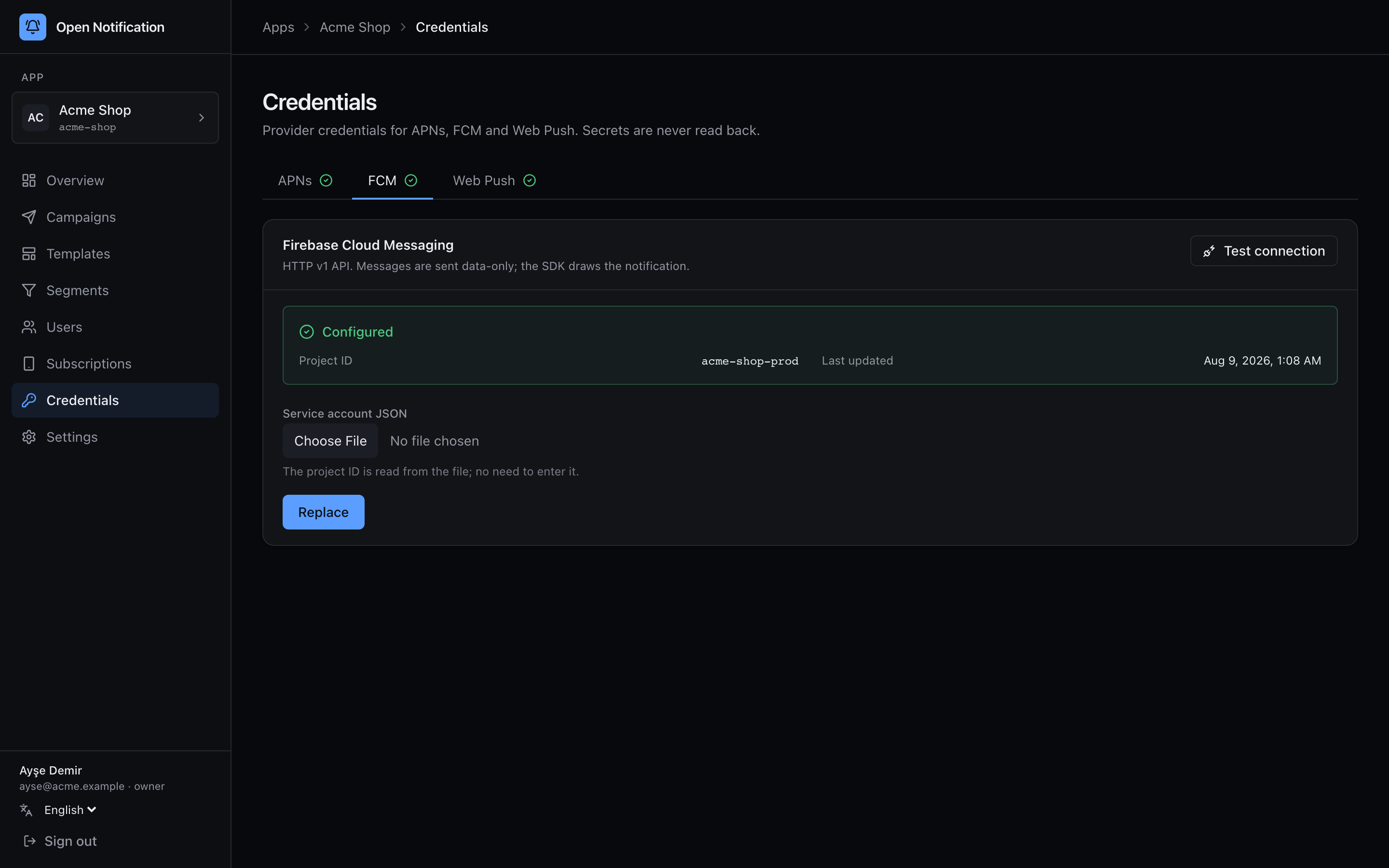
Or on the command line:
bun run app:create -- --name "Acme" --slug acme \
  --fcm-service-account ./acme-shop-prod-firebase-adminsdk.json
Part D — Verify
Press Test connection. The API mints an OAuth2 token from the service account and performs a validate_only send to an invalid token:
| Result | Meaning |
|---|---|
✅ INVALID_ARGUMENT / UNREGISTERED | Google authenticated you; the fake token was rejected. Ready. |
❌ PERMISSION_DENIED | The service account lacks the Firebase Cloud Messaging API role, or the API is disabled in Google Cloud. |
❌ 401 / invalid_grant | The JSON is corrupt or the key was deleted in the console. |
The app side
The SDK handles this — see Android SDK or React Native — but two things are on you:
- A monochrome status-bar icon (
res/drawable/ic_notification.png, white on transparent). Android renders anything else as a grey square. - Android 13+ needs the
POST_NOTIFICATIONSruntime permission; the SDKs request it.
Why data-only messages
The server never sends an FCM notification block. It sends data only, with android.priority: "high":
{
  "message": {
    "token": "…",
    "android": { "priority": "high", "ttl": "259200s", "collapse_key": "daily-streak" },
    "data": {
      "title": "New match", "body": "3 people liked you",
      "image": "https://…", "url": "acme://matches",
      "msgId": "<signed>", "campaignId": "…",
      "actions": "[{\"id\":\"view\",\"title\":\"View\"}]",
      "sound": "default", "group": "matches"
    }
  }
}
With a notification block Android draws the notification itself while the app is backgrounded and your code never runs — so there is no delivered event, no custom layout, no buttons. With data-only the SDK draws it and you keep all three. The trade-off: on a force-stopped app, or on some OEMs with aggressive battery savers (Xiaomi, Oppo, vivo), a data message may not be processed. priority: high is the mitigation.
Error handling on the server
| FCM error | Worker action |
|---|---|
UNREGISTERED, SENDER_ID_MISMATCH, INVALID_ARGUMENT (bad token) | Subscription invalidated. Never retried. |
QUOTA_EXCEEDED, UNAVAILABLE, INTERNAL | Exponential backoff, up to 3 attempts. |
THIRD_PARTY_AUTH_ERROR | Only relevant when sending to iOS via FCM — which Open Notification never does. |
SENDER_ID_MISMATCH after a migration means the tokens were registered against a different Firebase project than the service account you uploaded.